Recently, I came across some streaming video that was only available to Canadians. Being a Canadian in the US, I felt somewhat entitled. Yes: I wanted to watch a hockey game.
I knew I could do this with an SSH tunnel. I just wasn’t sure how. There are lots of pages explaining how to set up SSH tunnels and proxies, but none were very clear or complete, and they didn’t explain what you had to do on the web browser end.
Step 1: Set up the SSH tunnel
ssh -D 8080 -f -C -q -N [email protected]
Step 2: Set up System Preferences
This is for Safari and other WebKit-based browsers. Note: this will also affect Mail and other CFNetwork-based applications.
- Select Apple > System Preferences
- Click Network
- Select the network interface you wish to use (i.e. AirPort)
- Click Advanced
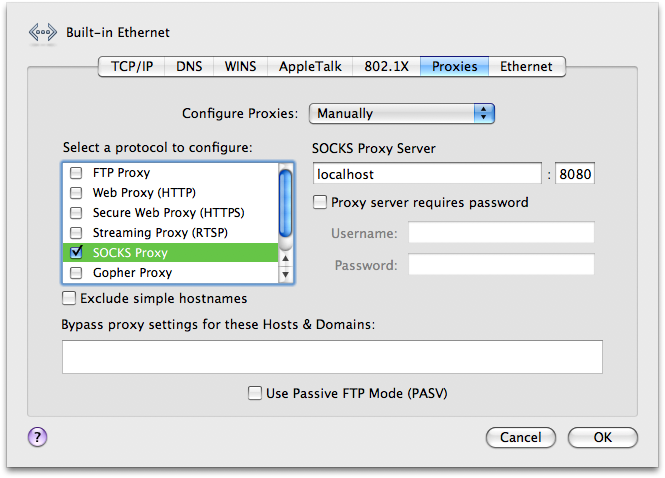
- Click Proxies
- Select Configure Proxies > Manually (only necessary on Leopard and earlier)
- Check the box beside SOCKS Proxy
- fill in “localhost” and “8080”
- Click OK
- Click Apply
Step 3: Set up Firefox
- Select Firefox > Preferences
- Click Advanced
- Click Network
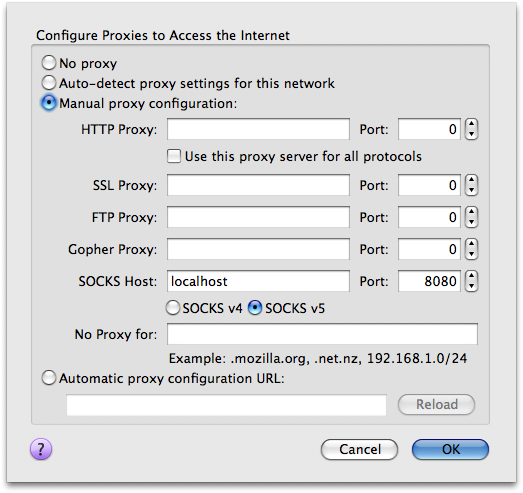
- Click Settings
- Click “Manual proxy configuration”
- Besides SOCKS Host, fill in “localhost” and “8080”
Do not fill in any other fields, including “HTTP Proxy” - Click SOCKS v5
- Click OK


Paul, I’ve wanted to be able to do something like this for a while and cannot believe it is this simple. Is there anything SSH can’t do? Thanks!
It works! But how to exit the ssh daemon?
Use
kill PIDorkillall sshto make it go away.